
How to Print Barcode Labels at Home
You've just ordered your UPC codes from us, and the delivery email is sitting in your inbox. Now comes the most common question we hear from new customers: "Do I need to order printed labels too — or can I print my own barcode labels at home?"
Good news: yes, a standard inkjet or laser printer can produce perfectly scannable barcode labels at home. You don't need a thermal printer, special software, or a print shop — you need the barcode graphics from your order email, real label sheets, the correct print settings, and a five-minute test scan before you commit to a full run. Miss any of those, and you get the classic DIY failures: blurry bars, stretched codes, and labels that make the checkout scanner beep in protest.
As the manager at UPCs.com, I've troubleshot hundreds of home-printing setups. Here's exactly what's in your order, the process that works, and the honest math on when printing at home stops being worth it.
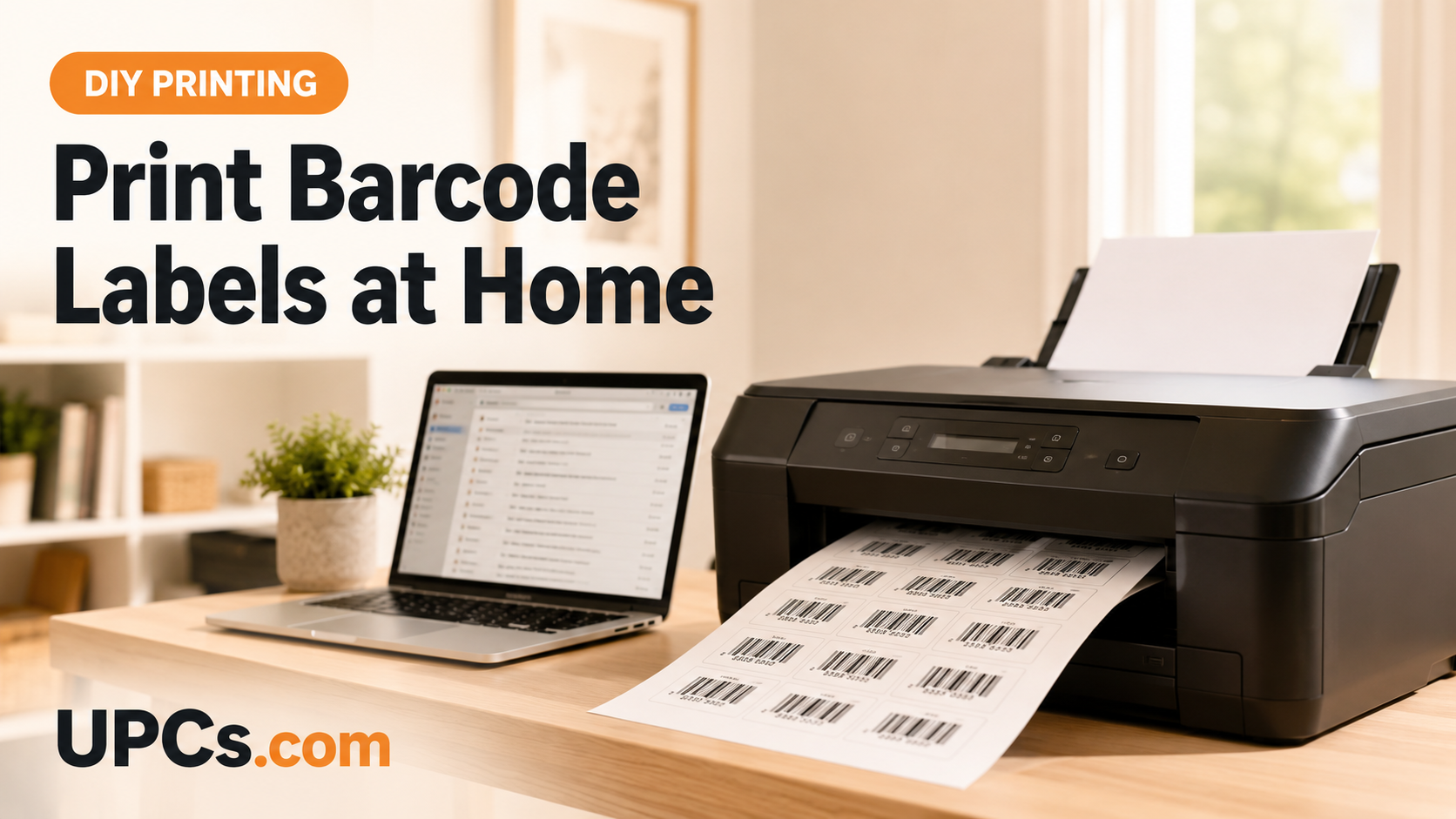 A regular desktop printer plus proper label sheets can produce retail-quality barcode labels.
First: What Arrives With Your UPCs.com Order
Within minutes of your purchase at UPCs.com, your delivery email lands with everything the print process needs:
- Your unique UPC numbers — a list of the codes now registered to you, one per product variation. (Refresher: do I need a separate UPC for every product?)
- High-resolution barcode graphics — print-ready images of each barcode. These are the files you'll place into your label layout; there's nothing to design or generate.
- Your Certificate of Ownership — file this away; it's your proof of ownership for marketplaces, and it never expires. (What else comes with your order: see the full list.)
Misplaced the graphics, or bought codes elsewhere? You can recreate print-ready images from your numbers with our free barcode generator.
What You Need Before You Hit Print
- Your barcode graphics from the delivery email above.
- Real label sheets. Use die-cut adhesive label sheets — the standard 30-up layout of 2.625″ × 1″ labels is the workhorse size for UPC barcodes. Don't print on plain paper and reach for scissors and tape; hand-cut labels lose their quiet zones and their squareness. (We stock blank barcode label sheets sized for exactly this.)
- An inkjet or laser printer with reasonably fresh ink or toner. Laser has the edge for crisp bars; inkjet works well on matte stock.
The Print Settings That Make or Break the Scan
Barcodes are precision graphics — a scanner reads the exact ratio of bar widths. These four settings protect that precision:
| Setting | Use This | Why It Matters |
|---|---|---|
| Scale | 100% / Actual size | "Fit to page" or "shrink to fit" distorts bar widths — the #1 cause of unscannable home-printed codes |
| Quality | High / Best | Draft mode produces fuzzy bar edges that scanners misread |
| Color | Black bars only | Pure black on white gives maximum contrast; composite "rich black" or colored bars can fail |
| Paper type | Matte labels (for inkjet) | Matte stock prevents ink bleed that fattens the bars; let ink dry before touching |
Step-by-Step: Printing Scannable Labels at Home
-
1
Lay Out Your Labels
Place your barcode graphics into a label template matching your sheet (most label brands offer free Word/PDF templates for the 30-up 2.625″ × 1″ layout). Keep the barcode at a scannable size with white space on both sides — never crop the margins. (Sizing rules: how to properly size and place barcodes.)
-
2
Print One Test Sheet on Plain Paper
Before burning label stock, print a test page on plain paper and hold it over the label sheet against a light. Confirm alignment, then check the settings: 100% scale, best quality, black ink.
-
3
Print the Real Sheet and Let It Dry
Load the label sheets, print, and — if you're on inkjet — give the ink a few minutes to dry before stacking or handling. Smeared bars are dead bars.
-
4
Test-Scan Before You Apply
Scan a label with a phone barcode app and, ideally, a real laser scanner (any friendly local shop has one). Verify the digits that come up match the code you assigned to that product. Do this for at least one label from every sheet batch.
-
5
Apply to a Flat, Smooth Spot
Place labels on a flat area of the package — not over seams, corners, or curves tighter than the label can handle. (The full don't-do list: common mistakes when printing and placing barcodes.)
The Failures to Watch For
- Blurry or bleeding bars: low quality setting, glossy stock on inkjet, or a tired cartridge.
- Stretched or squashed codes: someone resized the image non-proportionally or printed "fit to page."
- Cut-off quiet zones: the blank margins beside the bars got cropped in layout — scanners need that white space to find the code.
- Scans, but shows the wrong product: a copy-paste mix-up between label positions and SKUs. Always verify digits against your product list.
The Honest Math: When Home Printing Stops Making Sense
For a craft-fair batch or your first 50 units, home printing is great. But run the numbers at volume: label sheets, ink cartridges (barcodes are ink-hungry), misprinted sheets, and — the big one — your hours at the printer instead of growing your business. Somewhere in the low hundreds of labels, DIY quietly becomes the expensive option.
That's exactly why we offer professionally printed barcode label sheets and printed label rolls: your codes, printed on retail-grade stock, verified to scan, shipped ready to apply. We can even print codes you didn't buy from us — (yes, we print labels for your existing barcodes) — and Amazon sellers can get FNSKU label rolls for FBA prep. (FNSKU vs UPC confusion? Here's the guide.)
Frequently Asked Questions
Can I print barcodes with a normal printer?
Yes. Any decent inkjet or laser printer produces scannable barcodes when you print at 100% scale, at high quality, in black, on proper label sheets. The equipment is rarely the problem — the settings are.
What size should home-printed barcode labels be?
The 2.625″ × 1″ label (30 per sheet) comfortably fits a UPC-A at a scannable magnification with quiet zones intact. Go bigger if your package allows; avoid shrinking below roughly 80% magnification. (Details: barcode sizing guide.)
Do I need a thermal printer for barcode labels?
No. Thermal printers earn their keep at high volume (they're fast and never run out of ink), but they're an optional upgrade, not a requirement. If you reach that stage, consider whether rolls or sheets fit your workflow — or skip hardware entirely with pre-printed labels.
Where do I get the barcode images to print?
They come free with your code purchase at UPCs.com — codes you own forever with no annual fees — or generate them from your numbers with our free barcode generator.
Rather Skip the Printer Altogether?
Get your barcodes professionally printed, verified to scan, and shipped ready to apply — sheets, rolls, or Amazon FNSKU labels.
Shop Barcode Labels