
Why Won’t My Barcode Scan? 9 Reasons and How to Fix Each One
There are few moments more frustrating for a product seller: your labels are printed, your packaging looks beautiful, and then the scanner goes… nothing. No beep. Or worse — the beep happens at a store register, in front of a customer, and the wrong product comes up.
When a barcode won't scan, the cause is almost always one of nine physical or data problems: the symbol is too small, too low-contrast, missing its quiet zones, glared out, blurry, truncated, damaged, encoding the wrong number, or pointing at missing database information. Every one of them is fixable — most before you ever print your next batch of labels.
As the manager at UPCs.com, I've diagnosed thousands of "dead" barcodes for sellers over the years. Here are the nine causes I see, in the order I check them, with the fix for each.
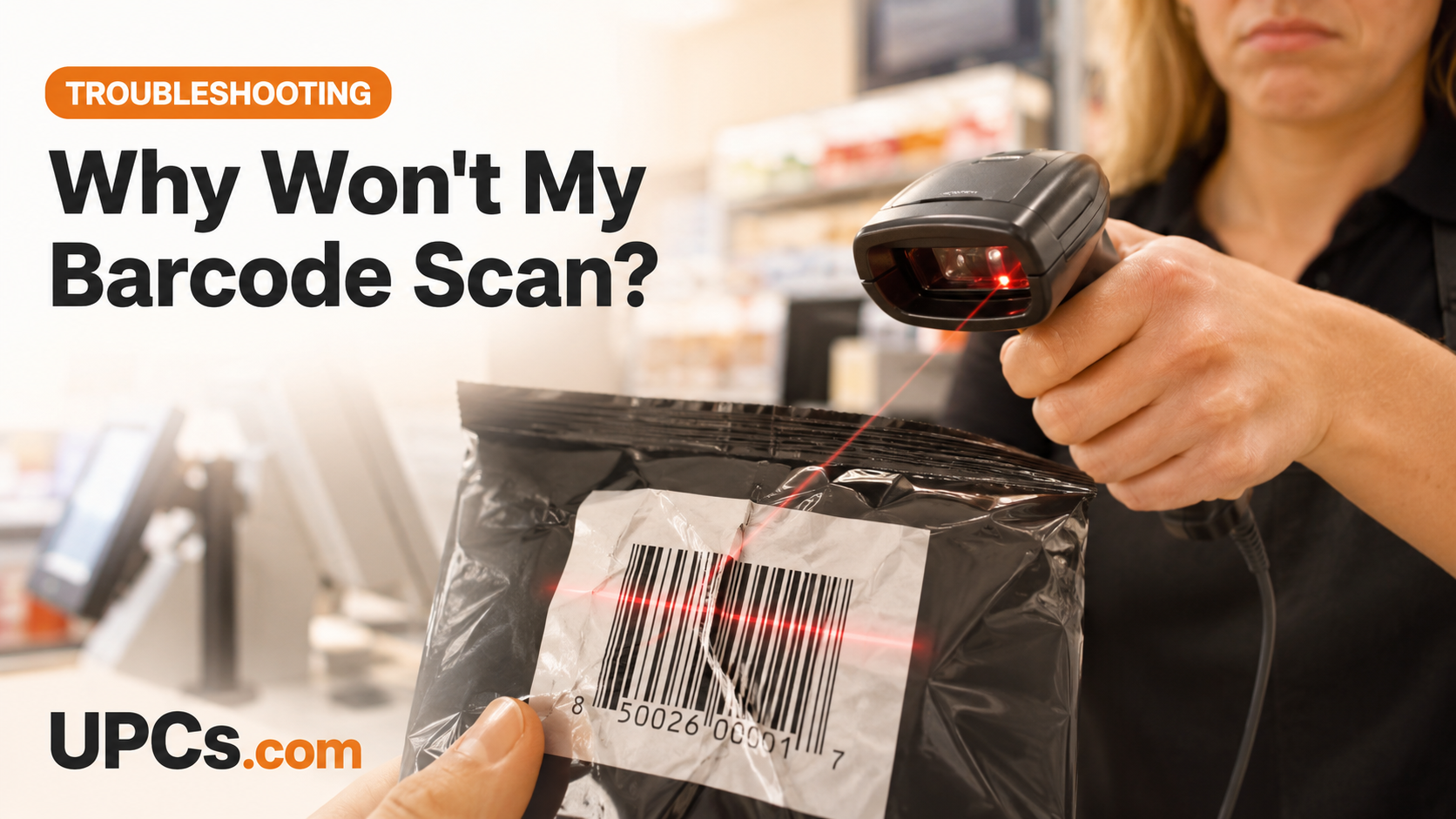 Most scan failures trace back to size, contrast, or print-quality problems that are easy to prevent.
The 9 Reasons a Barcode Won't Scan
-
1
The Barcode Is Printed Too Small
UPC symbols have a legal size range: 80% to 200% of nominal size. At 100%, a UPC-A is about 1.47" wide × 1.02" tall. Shrink below 80% (about 1.17" wide) and the bars get too fine for many laser scanners to resolve — especially older grocery-store hardware.
Fix: Never scale a barcode below 80%. If your package can't fit it, redesign the placement before shrinking the symbol. (Full spec: barcode sizing and placement guide.)
-
2
Low Contrast or the Wrong Colors
Scanners read the contrast between bars and background — most use red light. Under red light, red bars are effectively invisible, and so are orange and light-brown ones. Dark backgrounds behind dark bars fail the same way, as do shiny metallic inks.
Fix: Black bars on a white (or very light) matte background is the gold standard. Dark blue or dark green bars on white also work. Never print bars in red, and never reverse the colors (light bars on dark).
-
3
The Quiet Zones Are Violated
The blank margins to the left and right of the bars — the "quiet zones" — are part of the barcode. Scanners need them to know where the symbol starts and stops. Text, borders, package folds, or design elements crowding those margins will kill an otherwise perfect barcode.
Fix: Keep a clear zone of at least 9 times the width of the narrowest bar on both sides (roughly 1/8" at 100% size). Watch for label templates that crop tight to the bars. (This is one of the most common printing and placement mistakes we see.)
-
4
Glossy or Curved Surfaces Cause Glare
High-gloss lamination, shrink wrap, and clear poly bags bounce the scanner's light straight back, blinding the sensor. Tight curves (bottles, tubes) distort the bar widths as the label wraps.
Fix: Use matte varnish over the barcode area. On cylinders, orient the bars perpendicular to the curve (a "ladder" orientation) so each bar stays a consistent width, and avoid placing barcodes over seams or through shrink film.
-
5
Low Print Resolution or Ink Bleed
A barcode is precision artwork: the bar-to-space widths must stay accurate to fractions of a millimeter. Home inkjets on plain paper wick ink outward, fattening every bar; low-resolution printing (below 300 DPI) rounds bars into mush; scaling a low-res JPEG introduces distortion.
Fix: Print from vector artwork (EPS/PDF) or high-resolution originals at 300+ DPI on label stock, not copy paper. Better yet, skip the trial and error and order professionally printed barcode labels — every label is scan-verified before it ships. (DIY route: how to print barcode labels properly.)
-
6
The Barcode Is Truncated (Cut Too Short)
Designers love chopping barcode height to save space. But height is what lets a scanner's beam cross every bar in one sweep even at an angle. Heavily truncated codes force checkers to reorient the package repeatedly — and omnidirectional grocery scanners often can't read them at all.
Fix: Keep the full symbol height whenever possible. If space is tight, reduce overall magnification (not below 80%) instead of slicing height off a full-width code.
-
7
The Label Is Damaged, Wrinkled, or Poorly Applied
Wrinkles break bars. Bubbles distort spacing. Labels applied over box corners split the symbol across two planes. Thermal labels fade with heat and sunlight; abrasion in shipping scratches bars away.
Fix: Apply labels flat on a single face of the package, away from edges and seams. Choose durable label stock for products that face moisture, friction, or sun.
-
8
The Wrong Number Is Encoded in the Bars
Sometimes the print is flawless — but the barcode itself is wrong. A typo during design, a mixed-up artwork file, or a bad free generator can produce bars that encode a different number than the one printed beneath them, or a number whose check digit doesn't validate, which scanners silently reject. (Free tools are a common culprit — see the problem with online barcode generators.)
Fix: Scan a proof with a phone app and confirm the decoded digits match your assigned UPC exactly. Verify the last digit with our free check digit calculator, and generate clean symbols from our barcode generator.
-
9
The Scan Works — But the Wrong (or No) Product Comes Up
If the scanner beeps and decodes the right number but shows "item not found" or another company's product, your barcode is fine. This is a database issue: a barcode contains only a number; the product name and price live in each retailer's (or app's) database, which has to be loaded with your item first.
Fix: Make sure the retailer has entered your item into their POS system, and that your marketplace listings use the same UPC. Phone apps pull from crowd-sourced databases that may simply not know your product yet. (Why this happens: why your company name doesn't come up when scanned — and how UPC databases and lookup actually work.)
Quick Diagnostic Table
| Symptom | Most Likely Causes | First Thing to Check |
|---|---|---|
| No beep at all | #1, #2, #3, #5, #6, #8 | Scan with a phone app — if the phone reads it, the print is marginal; if not, it's badly out of spec |
| Scans only sometimes / after several tries | #1, #4, #5, #6, #7 | Size and surface: measure the symbol width and check for glare or curvature |
| Beeps, but wrong or missing product | #8, #9 | Compare the decoded digits to your assigned UPC with a UPC lookup |
| Prevention | Test-scan a printed proof before every production run — 30 seconds that saves a re-print | |
Start With a Barcode Worth Printing
Everything above assumes one thing: the number in your barcode is a legitimate, unique UPC that actually belongs to your product. Codes from random free sources can collide with existing products — which lands you in cause #9 permanently, with a register showing someone else's item.
When you buy UPC codes at UPCs.com, you get unique, authentic codes delivered in minutes with print-ready barcode graphics — and you own them forever, with no annual renewal fees. (Where they work: everywhere UPCs are accepted.)
Frequently Asked Questions
Why does my barcode scan on my phone but not at the register?
Phone cameras are far more forgiving than retail laser scanners — they tolerate small sizes, low contrast, and glare that a register can't. Treat a phone scan as the minimum bar, not proof of retail readiness. If the register stays silent, check size (#1), contrast (#2), and quiet zones (#3) first.
What colors can a barcode be printed in?
Safe: black, dark blue, or dark green bars on a white or light matte background. Fatal: red/orange/yellow bars (invisible under red scanner light), light bars on dark backgrounds, and metallic or glossy inks.
How do I check if my barcode encodes the right number?
Scan it with any phone app and compare the decoded digits with your assigned code, then confirm the final digit with our check digit calculator. If the digits differ from the number printed under the bars, the artwork was generated wrong — regenerate and reprint.
Can a barcode "expire" or stop working over time?
The number itself never expires. What degrades is the physical print — thermal labels fade, and abrasion damages bars (#7). If an old label stops scanning, reprint the same code on fresh stock.
Barcodes That Scan the First Time
Authentic UPC codes with print-ready graphics, plus professionally printed, scan-verified labels — delivered in minutes, owned forever, no annual fees.
Buy UPC Barcodes Now